Write docs
The Priompt docs are a Docusaurus 3 site in the docs directory of the priompt-dot-com repository. This page covers the style rules every page follows, the components for release names, the tabs, the rules for screenshots, and how to build the site before you open a pull request.
Prerequisites
Before you begin, make sure you have:
- Node 20 or later: from your package manager or nodejs.org.
- pnpm:
npm install -g pnpm. - A clone of
priompt-dot-com.
Build the site
To build the docs:
-
Install the dependencies, from the
docsdirectory:pnpm install -
Build the static site:
pnpm buildThe output goes to
docs/build. The build fails on a broken link or a broken anchor, so a green build means every link resolves. -
To preview while you write, run
pnpm start. It serves the site athttp://localhost:3000and reloads on save.
From the repository root, pnpm docs:dev and pnpm docs:build run the same scripts.
Where pages go
The navbar has six tabs, and each page belongs to exactly one:
| Tab | Directory | Page types |
|---|---|---|
| Get started | docs/ root, installation/ | Overview, quickstart, install |
| Guides | concepts/, guides/ | Concept, how-to, UI guide |
| SDKs | sdks/ | SDK reference and integration |
| Self-host | operations/ | How-to for operators |
| Reference | reference/ | Reference |
| Contribute | contributing/ | Contributor |
sidebars.ts lists every page. A new page needs an entry there, or the build leaves it out of the navigation. When a page moves, add a redirect from its old URL to its new one in docusaurus.config.ts, never to the home page.
Page structure
Every page starts with this frontmatter:
---
title: Roll back a prompt
sidebar_label: Roll back
description: "Point main at an earlier commit so agents get the old version."
doc_type: how-to
---
title: The page heading. Don't repeat it as a#heading in the body.sidebar_label: Three words or fewer.description: One plain sentence, without Markdown. Search results and card lists show it.doc_type: One ofoverview,quickstart,how-to,concept,reference,ui-guide, orcontributor. A page has one type. Link to other pages instead of mixing types.
The body follows its type:
- First sentence: Defines the subject or states the outcome. Never open with a table, a diagram, or "This page".
- Second sentence: Says what the reader gets. Requirements come before the steps they apply to.
- Prerequisites: Quickstarts, how-tos, and UI guides have a
## Prerequisitessection right after the opening, introduced by "Before you begin, make sure you have:" and a list of- **Thing**: how to get it.items. - Stages: A task with several stages uses numbered headings, such as
## 1. Start the server. Inside a stage, use a numbered list with one action per item. - Procedures: Introduce each with a colon lead-in, such as "To roll back a prompt:". Put the result of a step on its own line after the step.
- Ending: How-tos, guides, and contributor pages end with
## Next steps, concept pages with## Related. List 2 to 5 links, each with what the reader does there. - Length: A how-to covers one task in 300 to 1,200 words and 8 steps or fewer. A concept page stays under about 1,000 words.
- One home per topic: Explain each thing once, on one page, and link to it from everywhere else.
Voice
- Headings: Sentence case. Task headings start with a verb ("Roll back a prompt"). Concept and reference headings are nouns ("Commits"). No questions, no leading articles, nothing deeper than
####. - Person and tense: Second person, present tense, active voice. Use the imperative for instructions. Use "Priompt" as the subject, never "we" or "let's".
- Banned words: simply, just, easily, obviously, basically, very, of course. No exclamation marks, no emoji, and no em dashes.
- Sentences: 20 words on average, never more than 30. Paragraphs have 4 sentences or fewer.
- Jargon: Define a term in the sentence where it first appears, in bold, and add it to the Glossary.
- Contractions: Allowed. Stay consistent within a page.
- Claims: No marketing and no superlatives. A performance number states the conditions it was measured under.
Formatting
- Code-like text: Backticks for commands, flags (
-nats-token), environment variables, paths, URIs, RPC names, and literal values. - UI labels: Bold, copied exactly, including case: Commit changes. Write a path through the UI as History > Compare.
- Versions in prose: "Go 1.25 or later". Use
>=only inside package specifiers. - Names: Priompt is the product.
priompt,promptctl, andpriompt-authgo in backticks when they mean the binary. Write PostgreSQL, NATS, gRPC, and SQLite in prose. - Example data: Org
acmeand URIs underpriompt://acme/. People are Ada ([email protected]), and service accountsci-bot. Hosts areprompts.example.com. Tokens appear as<token>. Never use real names, emails, hosts, tokens, or local file paths. - Links: Link a page on its first mention only, with the page or section name as the link text, never "here".
- Admonitions:
:::notefor extra information,:::tipfor a better way,:::infofor status or availability,:::warningfor a security exposure or a hard-to-undo action, and:::dangeronly for permanent data loss. Use 3 or fewer per page, never two in a row, and never put a required step in one.
Code blocks
- Every block has a language. A block that's a file has a
title="path/to/file". - Keep blocks to 25 lines or fewer.
- Code runs as shown. Explain each placeholder, such as
<token>, right after the block. - Every command that prints something shows its output, pasted from a real run: a
# =>comment for one line, or a following block withtitle="Output".
Option tables
Flag and option tables use the columns Flag | Env var | Default | Description. Leave out Env var when nothing has one. Each description starts with a capital letter and ends with a period. For short lists, use - **Name**: Explanation. items.
Diagrams
Mermaid is enabled: a fenced block with the mermaid language renders as a diagram. Use one or two per page, on overview, concept, and architecture-heavy pages, and put a sentence before each that says what it shows.
Release names
Never type the container image, the Python package, the npm package, or the version into a page. Use the two components that read them from docs/src/vars.ts, available in every .mdx page without an import:
Install the Python SDK with <Var name="pypiName" />.

<Cmd lang="sh">{`docker run -p 8443:8443 {{dockerImage}}`}</Cmd>
<Var name="..." />: Prints the value inline as code. Names:dockerImage,pypiName,npmName,version, andgithubOrg.<Cmd lang="..." title="...">: A code block that replaces each double-braced name with its value. Pass the code as a template string.
Today <Var name="pypiName" /> renders as priompt-sdk. To change a name, edit vars.ts, or set PRIOMPT_DOCKER_IMAGE, PRIOMPT_PYPI_NAME, PRIOMPT_NPM_NAME, or PRIOMPT_VERSION when you build. A value in angle brackets counts as not yet published, and <Cmd> adds a note under the block.
md or mdx
The site parses .md files as plain Markdown and .mdx files as MDX. A page that uses <Var>, <Cmd>, tabs, or a video must be .mdx. To convert a page, rename it with git mv; its URL doesn't change.
In .mdx:
- Write comments as
{/* comment */}. HTML comments break the build. - Escape braces and
<in prose, or put them in backticks. - Inside a
<Cmd>template string, escape backticks and the${sequence.
Tabs
Tabs and TabItem are available in every .mdx page. Use only these groups, with these values, so a reader's choice carries across pages:
groupId | Values, in order |
|---|---|
lang | py, js, grpc |
install | docker, source |
os | linux, macos, windows |
surface | ui, cli, sdk |
Any SDK example appears in both the Python and Node tabs, or carries a :::info Python only note.
Screenshots and video
Screenshots of the web UI live in docs/static/img/ui/, and pages reference them by path:
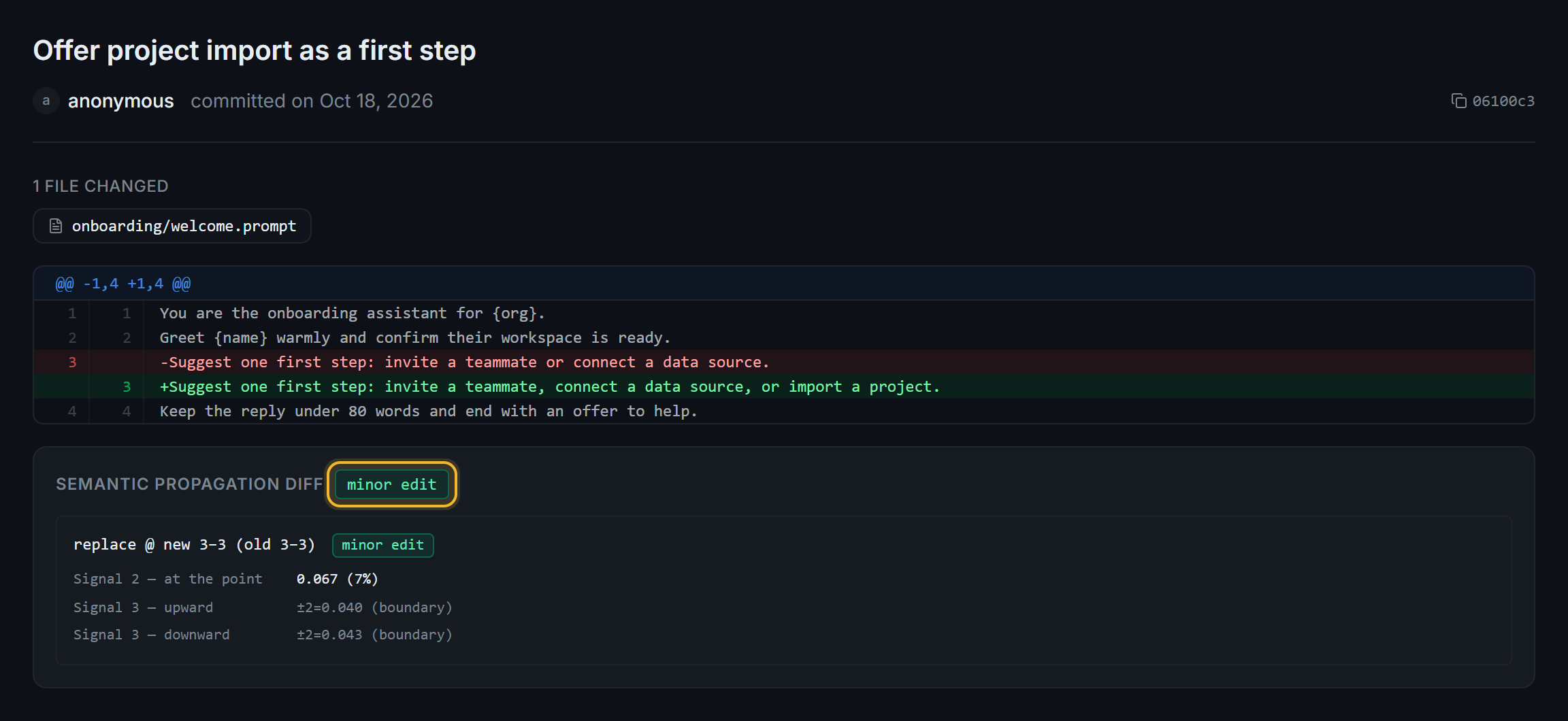
Follow these rules for every image:
- Capture: Take the screenshot from the page content only: no browser frame, tabs, bookmarks, extensions, taskbar, or cursor. Use a fixed viewport of 1280 by 800 at a device scale of 2, against a server seeded with the dev seed script.
- Crop: A full view of the app at most once per page, for orientation. Otherwise crop to the panel where the step happens, with its header, or to one dialog with about 24 px of padding.
- Size: Display at 800 px wide or less, never upscaled. Export optimized PNG or WebP of 300 KB or less.
- Placement: Put the image after the step it shows, inside the list item, showing the state after the action. Never put an image before its text, or two images in a row without a sentence between them. The last step of a guide shows the success state.
- Markup: Show state, such as an open menu or a selected row. If the target is still unclear, add one highlight box: a 2 px outline in the accent color, 6 px radius, no fill. Never bake text, numbers, or arrows into an image.
- Alt text: One or two sentences, 160 characters or fewer. Start with the screen name, then what's selected or open, then what to notice. Never write "Screenshot of", or a file name.
- No captions: The step text is the caption.
- No text as images: Code, terminal output, and config go in code blocks.
- Data: Only the seeded example data: org
acme, prompts underpriompt://acme/onboarding/andpriompt://acme/support/, authors[email protected]andci-bot. Never show tokens, real names, internal hosts, local paths, or pages that still run on sample data. - Freshness: Retake every screenshot when the UI changes.
Videos live in docs/static/video/, each with a poster image next to it. Embed one only in an .mdx page, muted and with controls:
<video controls muted playsInline preload="none" poster="/video/priompt-cli.png" src="/video/priompt-cli.mp4" style={{width: "100%", borderRadius: 8}} />
Keep videos to 15 seconds or less where you can, and never use a GIF.
Next steps
- Development setup: build the code you're documenting.
- Glossary: add the terms your page introduces.