Branch, promote, and roll back in the UI
This guide stages a change to one prompt on a dev branch, compares it with main, promotes it, merges it, and rolls main back. In Priompt, branches belong to a single prompt, and main is the branch served to agents. To do the same from code or the CLI, see Branch, pin, and roll back a prompt.
Prerequisites
Before you begin, make sure you have:
- The web UI running and connected to a server: see Run the web UI.
- An
rwtoken for the prompt's org in the UI's configuration, if the server has authentication on. - A prompt with a few commits, for example
priompt://acme/onboarding/welcome.
1. Pick the prompt
To open a prompt's branches:
-
Open the namespace, for example acme.
-
Select the Branches tab.
-
Under Prompt, select the prompt, for example
onboarding/welcome.prompt.The page lists the prompt's branches, with Promote and Rollback sections below them.
2. Create a branch
-
Select New branch.
-
In Branch name, enter
dev. -
In Source branch, keep main.
-
Select Create branch.
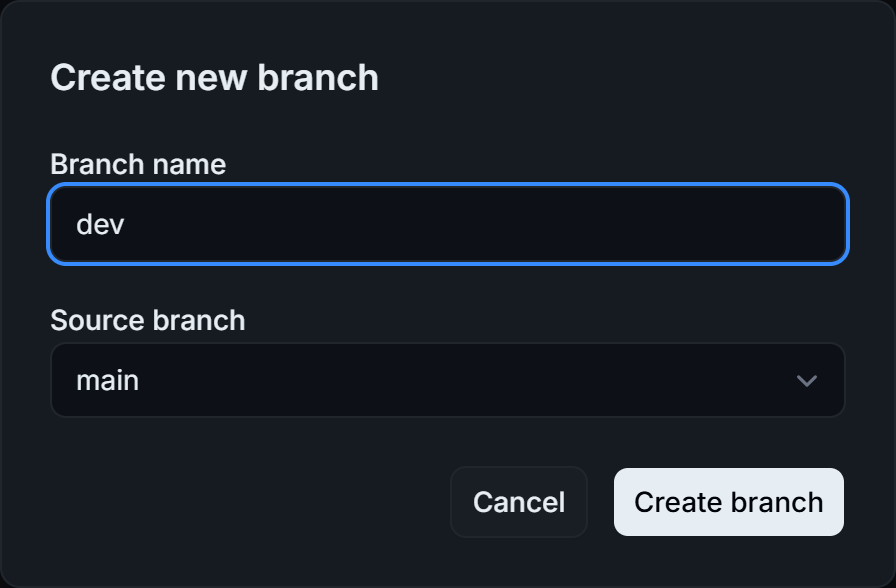
The new branch starts at the source branch's latest commit.
A banner confirms Created dev from main., and
devappears in the branch list.
3. Commit a change to dev
Edits on dev don't change what agents get from main.
To commit to dev:
-
Open the prompt, and pick dev in the branch switcher next to the file name.
-
Select Edit, change the template, and select Save.
-
Enter a commit message. Commit to: shows dev, and lists the prompt's other branches too.
-
Select Commit changes.
The Branches tab now shows your message as the latest commit on
dev.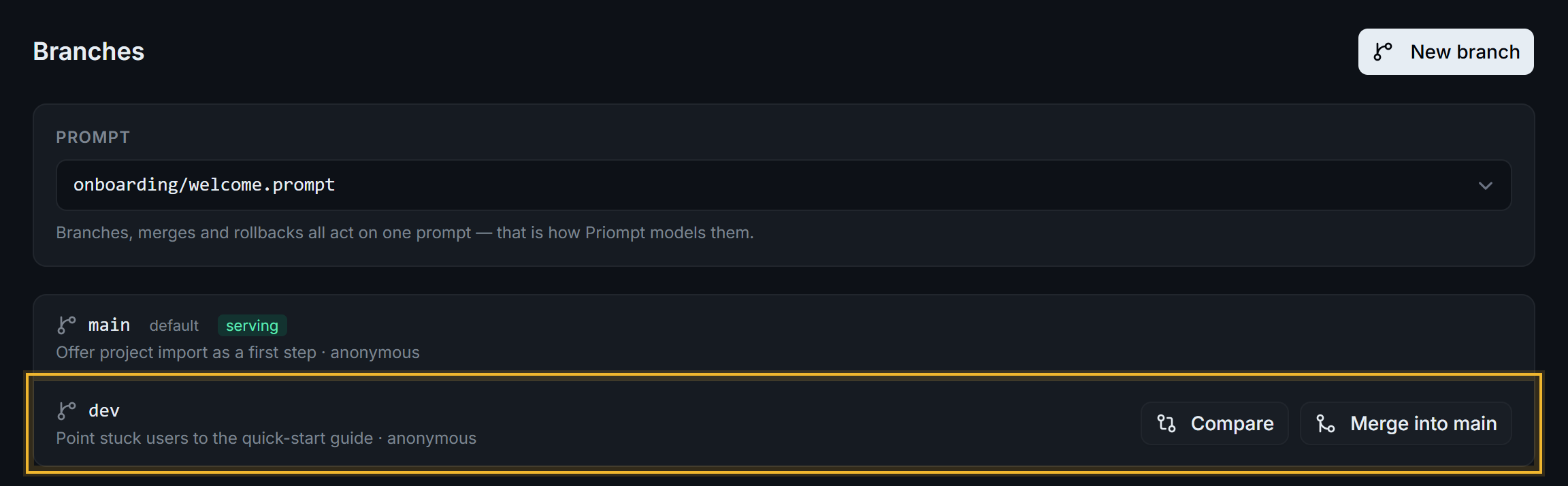
Each branch shows its latest commit message and author.
4. Compare dev with main
-
In the branch list, select Compare on the
devrow. The prompt page offers the same Compare button when it shows a branch other thanmain.The page opens at
/<org>/compare/main...dev?path=<prompt path>, for example/acme/compare/main...dev?path=onboarding/welcome.prompt.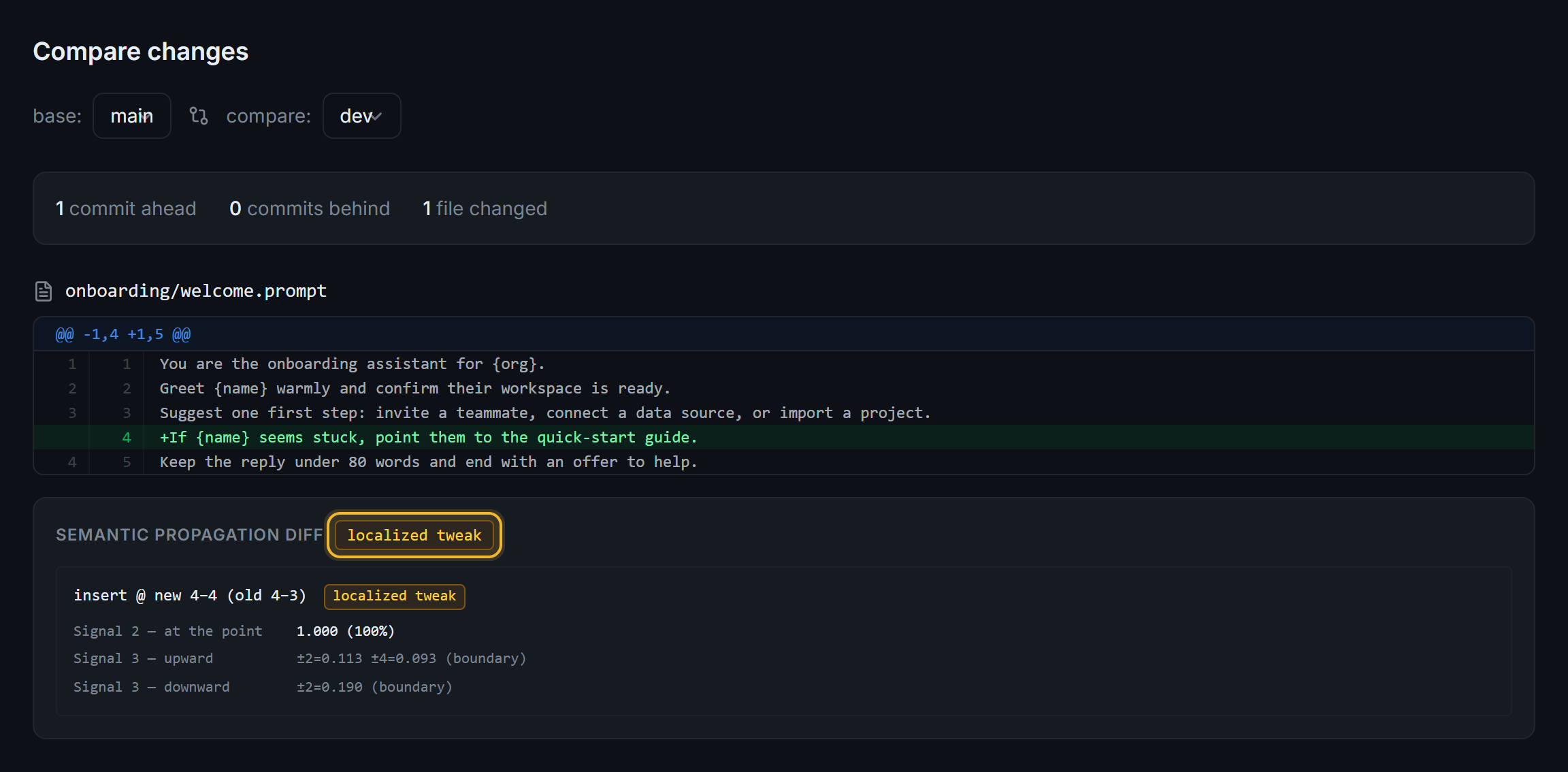
devis one commit ahead ofmainand adds line 4, alocalized tweak.
Use base and compare to pick other branches. The verdict reads the same way as on a commit. See Review a commit and its verdict.
5. Promote dev to staging
Promoting moves a prompt from one environment branch to the next, for example dev to staging to prod. Priompt records each promotion as a commit.
-
Under Promote, set From to dev and To to staging.
-
Select Promote.
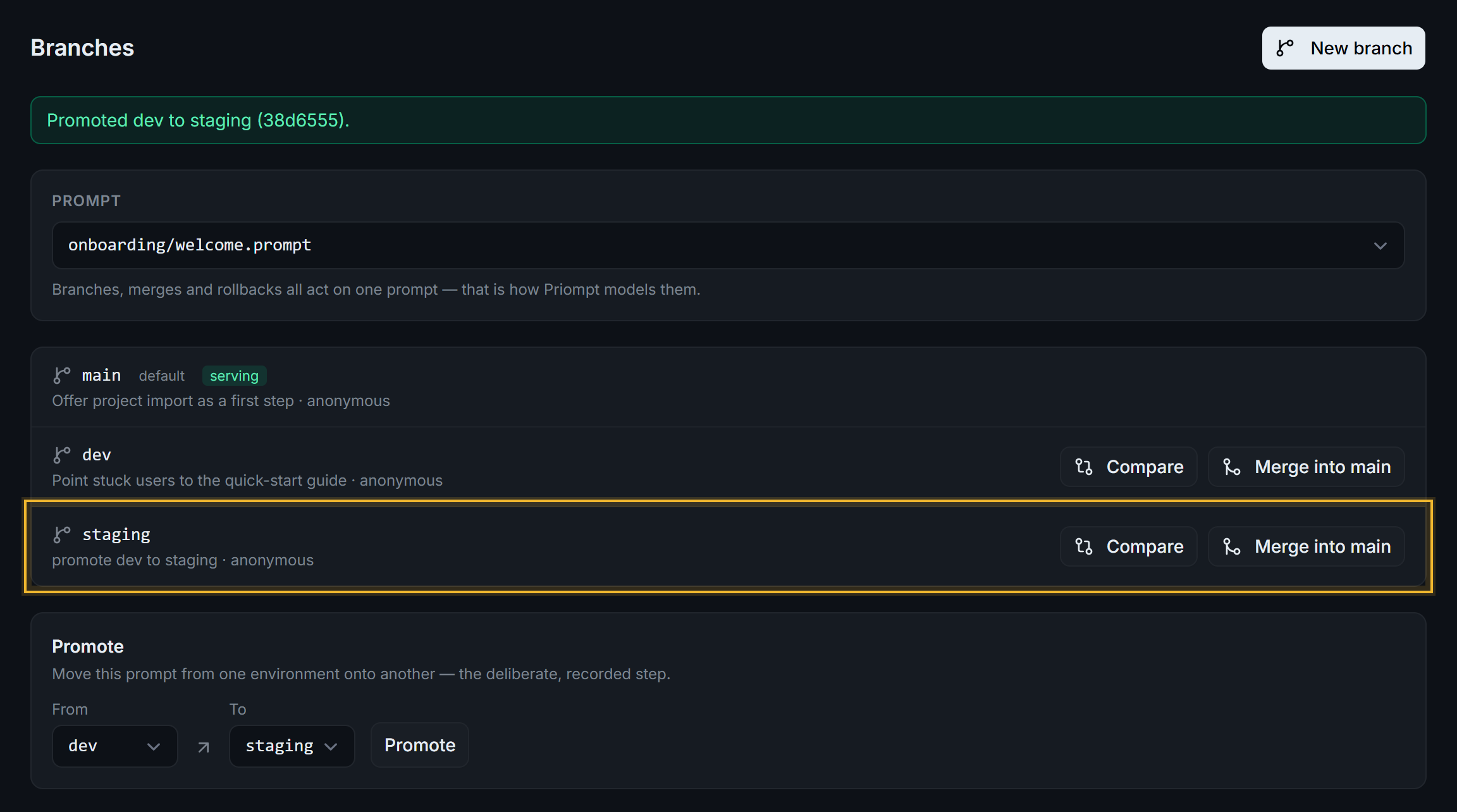
stagingnow holds the change fromdev.
If the target branch doesn't exist yet, the UI creates it from the source branch first.
6. Merge dev into main
-
In the branch list, select Merge into main on the
devrow.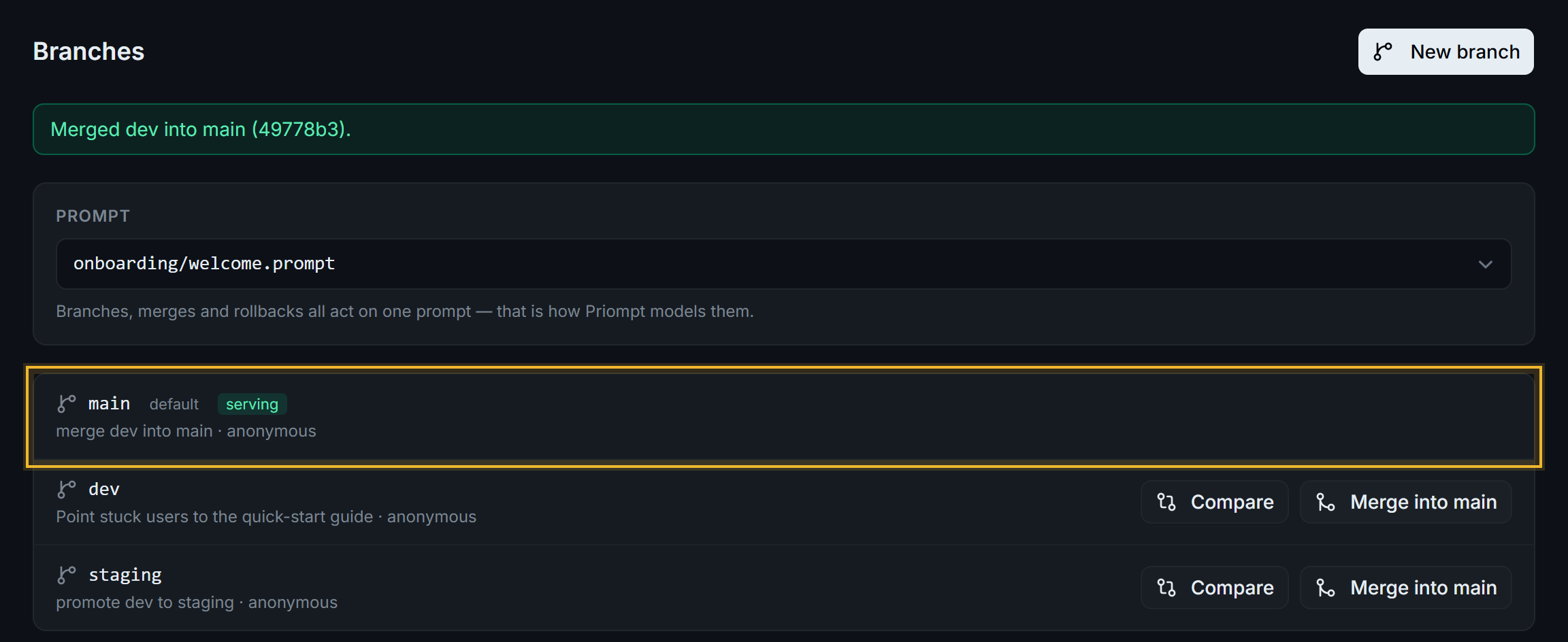
mainhas a new commit, and agents are now served the change.
7. Roll back main
Rolling back points main at an earlier commit. Nothing is deleted, and agents get the earlier version at once.
-
Under Rollback, find the commit you want
mainto serve. -
Select Roll back to here on that row.
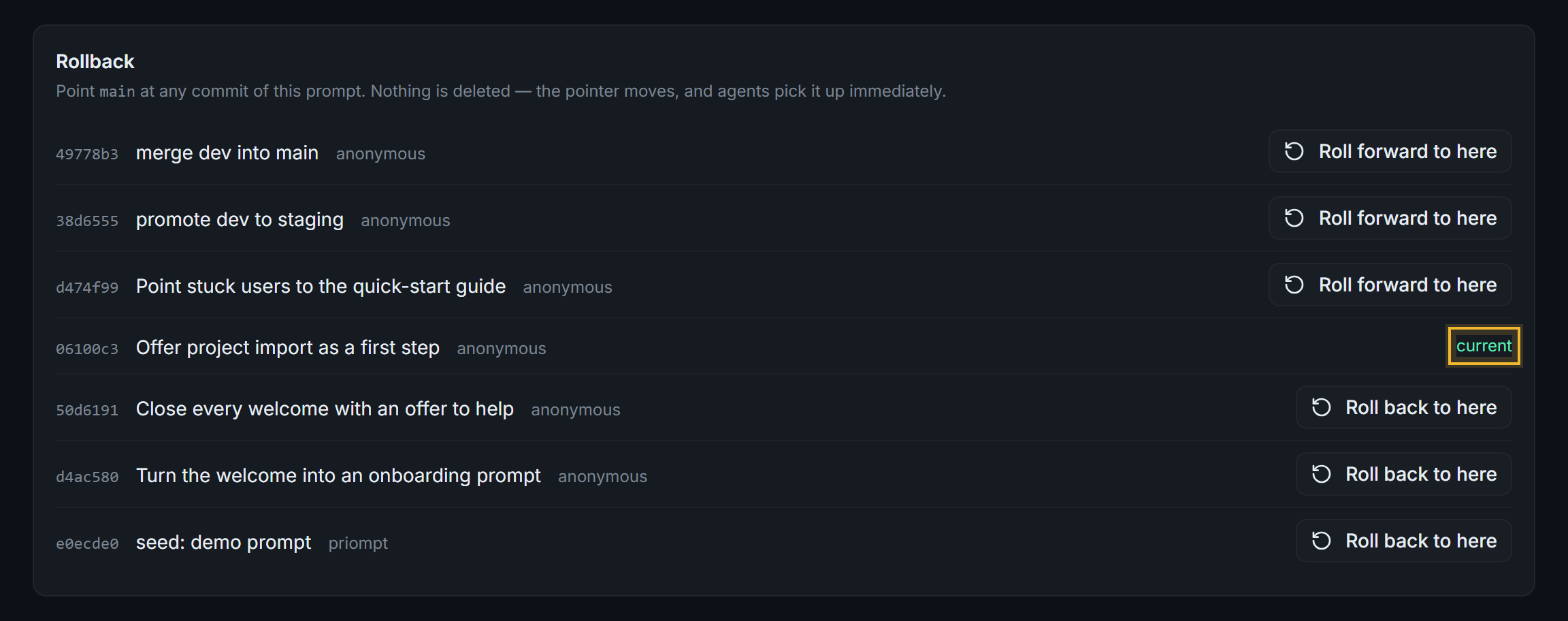
mainpoints at06100c3again, the commit before the change fromdev. The newer commits, including the merge commit, can still be rolled forward to.A banner confirms that
mainnow points at the commit, with Undo: move main back to<commit>to returnmainto where it was.
The list shows the commits of main, dev, staging, and prod, newest first, and marks the one main serves as current. Newer commits offer Roll forward to here. A commit that no listed branch reaches, such as a merge commit you rolled back past, drops out of the list once you leave the page; use Undo right away, or roll forward from code. Listing every commit is tracked in priompt#45.
Next steps
- Branch, pin, and roll back a prompt: pin an agent to a branch or commit from code.
- Versioning: how commits, branches, and the served
mainrelate. - Review a commit and its verdict: check each change before you merge it.