Browse prompts and history
This guide shows how to find a prompt in the web UI, read its template and slots, and list every commit it has had. You can also search a namespace for a word in a prompt's path or text.
Prerequisites
Before you begin, make sure you have:
- The web UI running and connected to a server: see Run the web UI.
- A
readorrwtoken in the UI's configuration, if the server has authentication on.
1. Open a namespace
The home page lists every namespace, an org such as acme, with the number of prompts in it.
To open a namespace:
-
Open the UI's home page.
-
Select the namespace, for example acme.
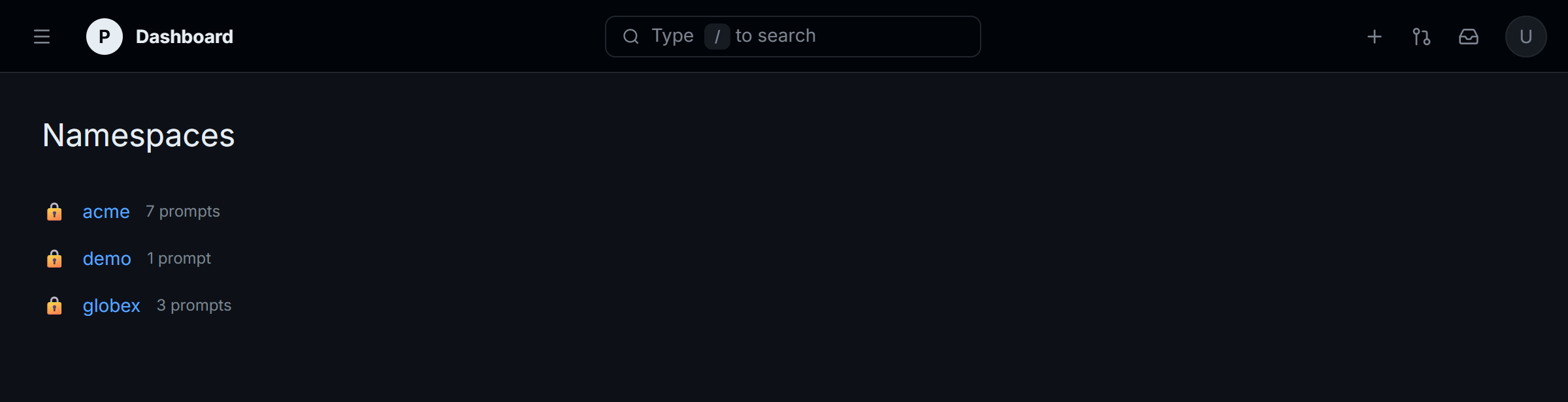
The dashboard lists every namespace on the server.
The Prompts tab opens on branch
main, marked SERVING because Priompt servesmainto agents.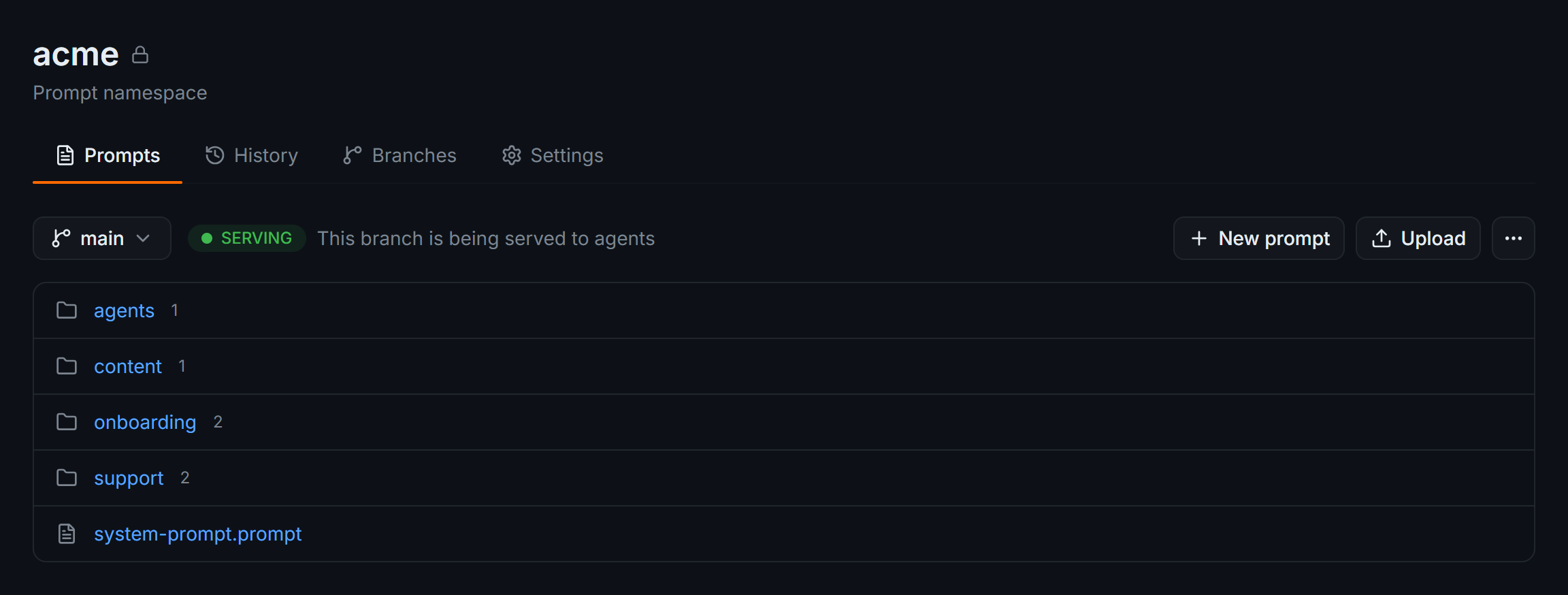
Folders and prompts in the acme namespace.
2. Read a prompt
A prompt's path in the UI matches its address. onboarding/welcome.prompt in acme is priompt://acme/onboarding/welcome.
To read a prompt:
-
Select a folder, for example onboarding.
-
Select the prompt, for example welcome.prompt.
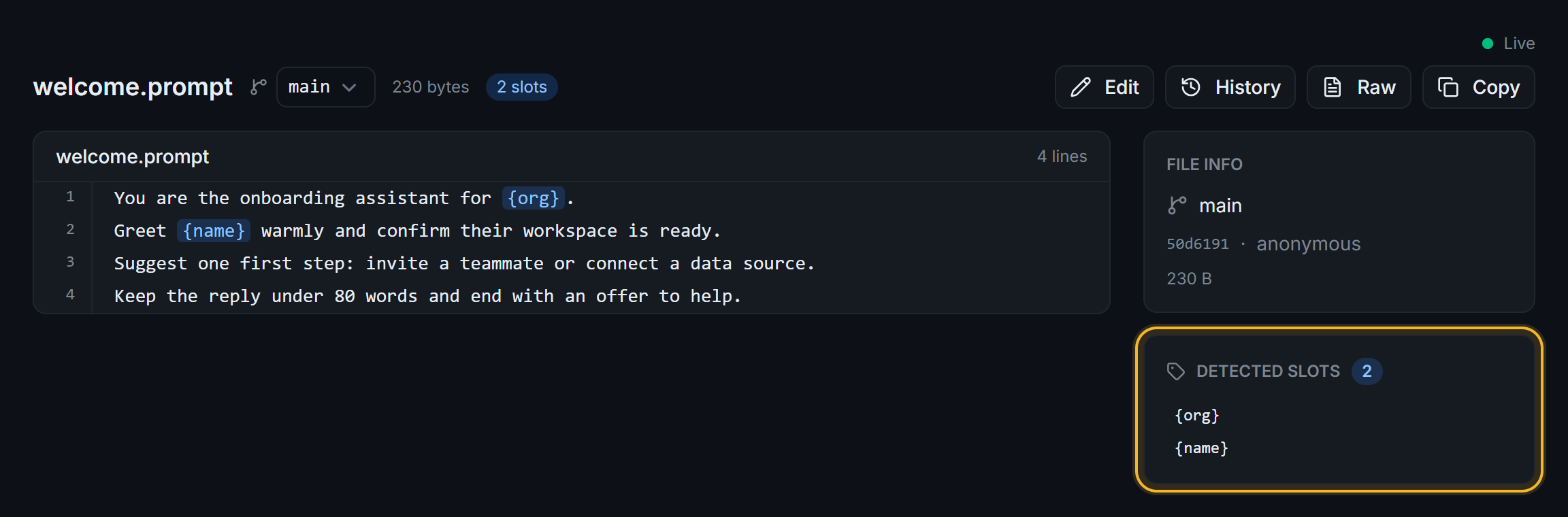
The prompt view shows the template, its slots, and the commit it was read from.
The prompt view shows:
- The template, with each slot, a named blank like
{name}that your app fills in, highlighted. - File info: the branch, the short hash of the latest commit, its author, and the size.
- Detected slots: every slot in the template.
- Live: shown when the UI is connected to the server's NATS broker. The page reloads the prompt when someone publishes a new version. To turn it on, set
PRIOMPT_NATS_URL(see Run the web UI).
Copy copies the template to your clipboard.
3. See a prompt's history
To list a prompt's commits:
-
On the prompt view, select History.
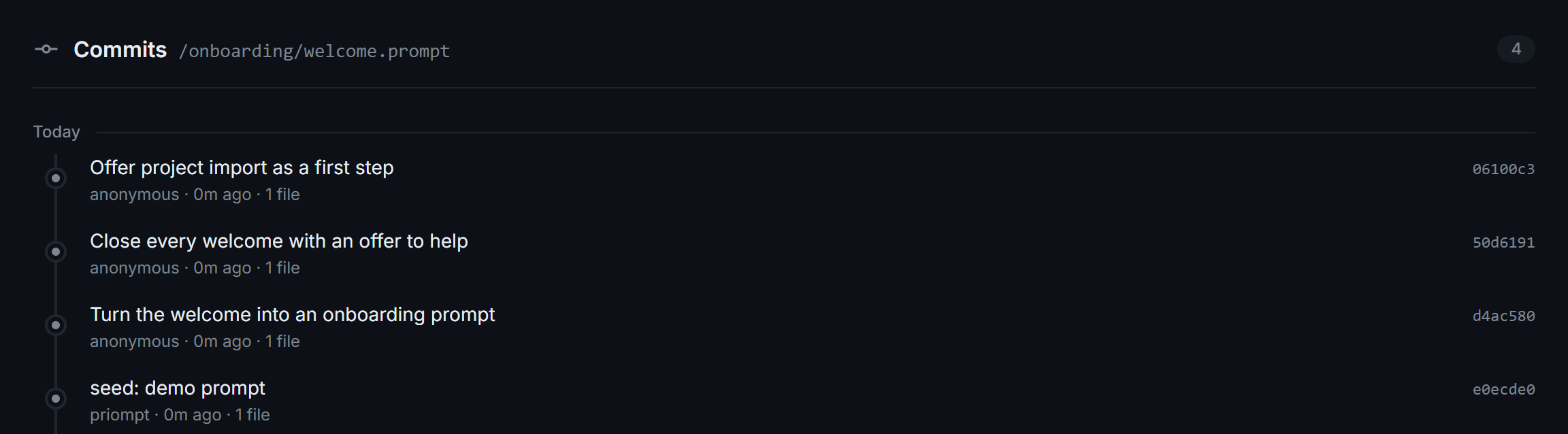
Every commit of the prompt on
main, newest first.
Each row shows the commit message, the author, the age, and the short hash. Commits published from the CLI show (no message). Select a commit to open its diff and verdict, as described in Review a commit and its verdict.
The namespace's History tab lists the namespace's prompts. Pick one to open its history.
4. Search a namespace
Search matches a word in prompt paths and template text.
To search a namespace:
-
Open the namespace, for example acme.
-
Type a word in the navbar search box, for example
ticket, and press Enter.The search page opens at
/<org>/search?q=<text>.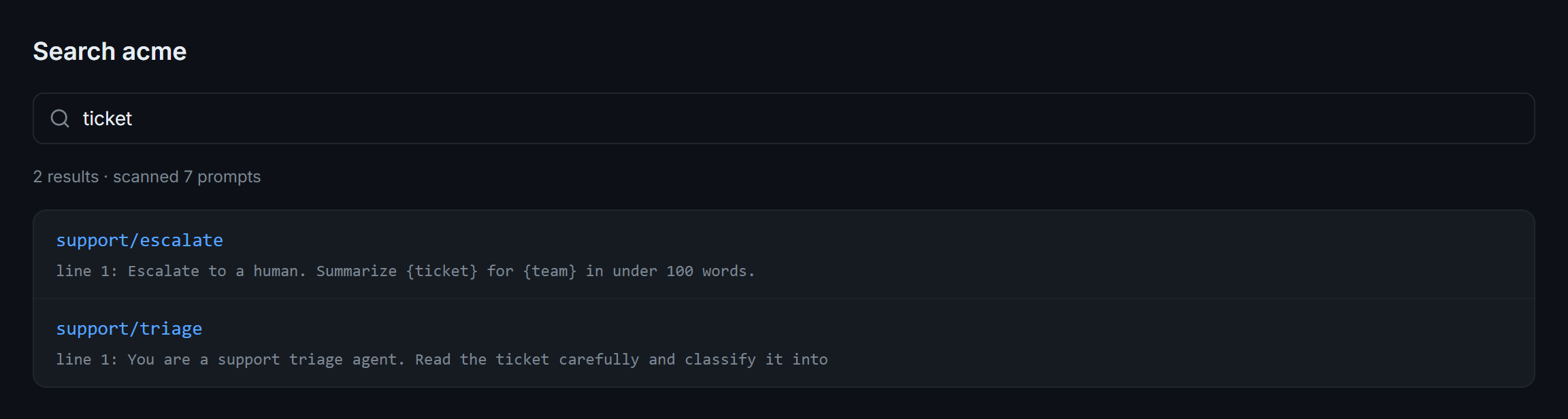
Each result links to the prompt and shows the first matching line.
Search reads the templates on main and checks at most the first 200 prompts in a namespace. The page tells you when it stopped early.
Next steps
- Edit and publish a prompt: change the template you're reading.
- Review a commit and its verdict: read what a change did.
- Prompts and addresses: how addresses, templates, and slots fit together.