Edit and publish a prompt
This guide changes a prompt's template in the web UI and publishes it as a new commit. A commit on main reaches agents right away, and the server records a semantic verdict for it. To publish from the command line instead, see priompt CLI.
Prerequisites
Before you begin, make sure you have:
- The web UI running and connected to a server: see Run the web UI.
- An
rwtoken for the prompt's org in the UI's configuration, if the server has authentication on.
1. Open the editor
To open a prompt for editing:
-
Open the namespace, for example acme.
-
Go to the prompt, for example onboarding > welcome.prompt.
-
Select Edit.
The template opens in the editor, with its slots listed on the right.
2. Change the template
-
Edit the text. Slots are placeholders such as
{name}. Detected slots updates as you type.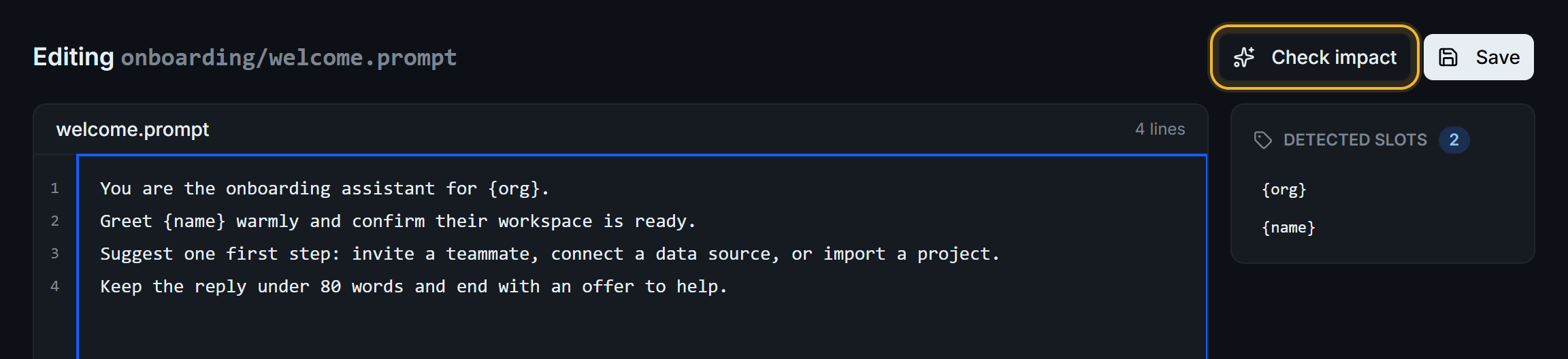
Line 3 now offers a third first step. The slots stay the same.
Priompt derives a prompt's slots from its template, so a new {placeholder} adds a slot and a removed one drops it. The UI rejects an empty template, a doubled {{name}}, and an unclosed or malformed placeholder before it sends anything.
3. Check the impact
Check impact asks the server for the semantic verdict of your unsaved edit: minor edit, localized tweak, or structural. The semantic diff page explains how the server decides.
-
Select Check impact.
The Semantic propagation diff panel opens under the editor with the verdict for each changed region.

Adding a third first step to line 3 is a
minor edit.
4. Commit the change
To publish the edit:
-
Select Save.
-
In Commit changes, enter a commit message of up to 72 characters.
-
Optionally, add an extended description. It's saved as the commit message's body, and the commit page shows it under the message.
-
Check Commit to:. It shows the branch you opened the editor on, usually main, and lists the prompt's other branches.
-
Select Commit changes.
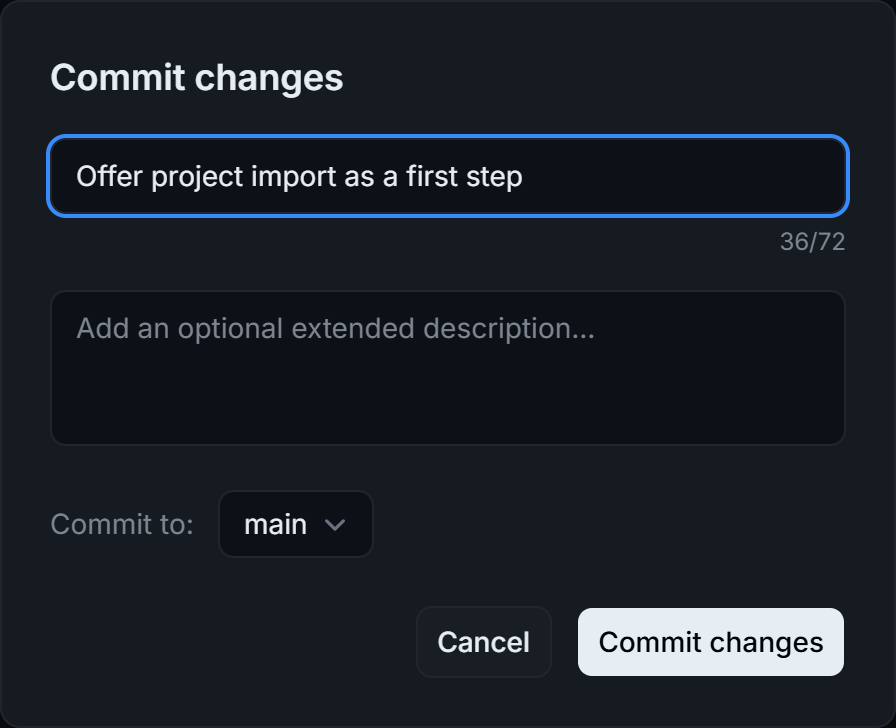
The commit message is required. It appears in the prompt's history.
The prompt view opens on the new version. A commit on main is served to agents at once, and subscribed agents get a notification with the verdict. To stage a change on dev first, see Branch, promote, and roll back in the UI.
If the server rejects the commit, the editor shows the error and keeps your text. When the error says to retry, for example because someone published in the meantime, select Save again.
Create a prompt
To add a new prompt to a namespace:
-
On the namespace's Prompts tab, select New prompt.
-
In File name, enter a name, for example
refund-reply.prompt. The.promptextension is added if you leave it out. -
In Folder, enter the folder, for example
support. Address shows the prompt's full address. -
Enter the template in Content. Detected slots lists its slots.
-
Enter a Commit message.
-
Select Create prompt.
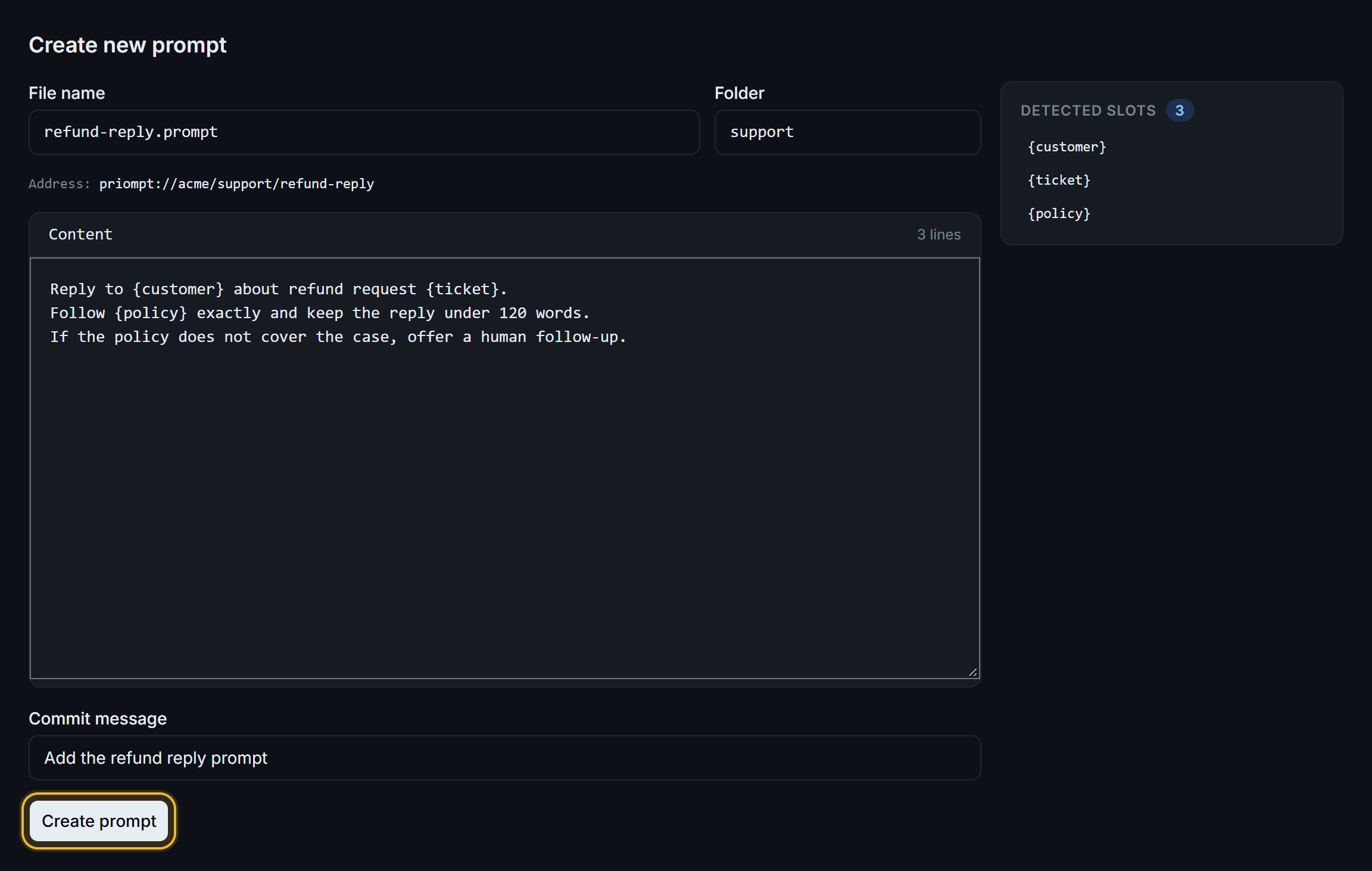
The form shows the address and slots the new prompt will get.
The new prompt opens on main with one commit.
Next steps
- Review a commit and its verdict: read the diff and verdict of the commit you made.
- Branch, promote, and roll back in the UI: stage edits on
devbefore they reach agents. - Live updates: how agents learn about a new version.